Posted on Leave a comment

Why is My WordPress Title All Bunched Up and On Top of Itself?

Just when you think you have WordPress completely figured out, it loves to throw a visual curveball at you.

This week, I finally solved my disappearing blog post mystery, clicked over to my live site to celebrate, and was greeted by a brand new nightmare: my titles were completely crashing into themselves.

Lines of text were overlapping like a scrambled puzzle. It looked broken, unprofessional, and entirely unreadable.

If your titles look like they’ve been shoved into a trash compactor, here is the quick, non-techie reason it happens and the 10-second setting that fixes it permanently.

The Problem: When Good Themes Have Bad Defaults

When you look at a summary feed of your blog posts, your theme tries to apply its default text styling to a layout with tight columns. If the font size is large but the hidden setting called Line Height is set too low (or to zero), the words have nowhere to go.

Instead of wrapping cleanly to the next line, the second line of text just climbs right on top of the first one.

Here is exactly what my live category page looked like when the theme text glitched:

It wasn’t just a live error either; it showed up right in the backend editor blocks.

The 10-Second Fix: Adjusting Your Line Height

You don’t need to learn code or switch your website theme to fix this. WordPress has a hidden slider built right into the design dashboard that forces text lines to separate.

Here is how to find it and fix it step-by-step:

  1. Go to your WordPress dashboard and click on Appearance > Editor (or click Edit Site at the top dark bar of your live page).
  2. Click directly onto one of your overlapping title blocks so it is highlighted.
  3. Look at the right-hand sidebar settings panel under Typography.
  4. Find the box labeled Line Height.
  5. Change that number to 1.7 (or use the “+” button to bump it up).
Typography settings panel showing options for font, font size, appearance, line height, letter spacing, decoration, letter case, and text alignment.

The second I changed that value to 1.7, it explicitly forced WordPress to drop a baseline of breathing room between the lines of text.

Save your changes, refresh your live site, and your titles will instantly separate into clean, perfectly spaced headers.
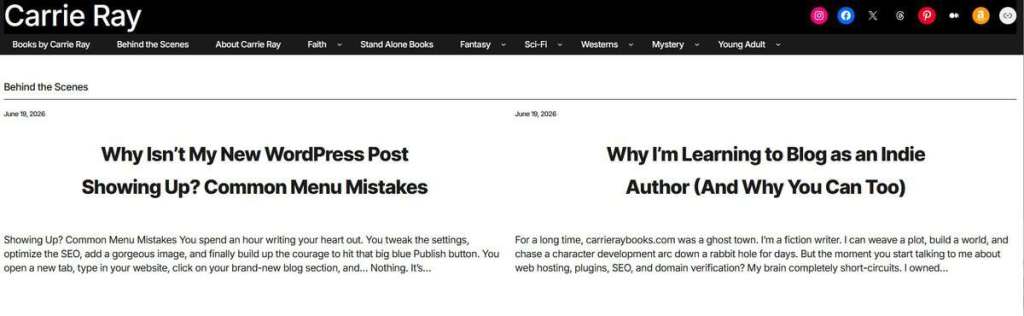
Screenshot of a blog page titled 'Behind the Scenes' featuring posts about WordPress troubleshooting and indie author blogging.

Are your WordPress theme fonts behaving themselves, or are you fighting text overlaps on your site too? Drop your tech frustrations in the comments below and let’s troubleshoot them together!

Posted on Leave a comment

Why Isn’t My New WordPress Post Showing Up? Common Menu Mistakes

Showing Up? Common Menu Mistakes

You spend an hour writing your heart out. You tweak the settings, optimize the SEO, add a gorgeous image, and finally build up the courage to hit that big blue Publish button.

You open a new tab, type in your website, click on your brand-new blog section, and…

Nothing.

It’s completely blank. No text, no images, just a ghost town.

Screenshot of Carrie Ray's website page titled 'Behind the Scenes', featuring a navigation menu and a footer with description of the site.

If this has happened to you, welcome to the club. It happened to me this week, and it is the exact moment thousands of new bloggers slam their laptops shut and give up on WordPress forever.

But don’t panic. Your article isn’t gone. You just accidentally stepped into the most classic WordPress trap on the planet: The Page vs. Category Mix-Up.

The Trap: Two Things with the Same Name

When you are setting up a blog, WordPress lets you create two entirely different things using the exact same title:

  1. A Static Page: This is a permanent, stationary wall of text (like your “About Me” page). It does not automatically update when you write new articles.
  2. A Post Category: This is a dynamic digital folder. Every time you write a new blog post and check the box for that category, WordPress automatically slides the new article right into that folder.

When I set up my website, I created a top menu navigation link called “Behind the Scenes.” I thought I was linking to my new blog folder. In reality, my menu was pointing to a blank, static Page.

Because the menu was pointing to an empty page instead of my active category folder, my newly published post was completely invisible to my readers!

How to Fix It in 3 Easy Steps

If you are staring at a blank page on your live site, here is the exact, non-techie puzzle pieces I used to fix it in five minutes:

Step 1: Trash the Blank Static Page

Go to your WordPress dashboard and click on Pages > All Pages. Find the empty page that is causing the confusion, hover over it, and click Move to Trash. This clears the air so your website stops getting confused.

Step 2: Grab Your Real Category Link

Go to Posts > Categories. Look for your blog folder (mine is called Behind the Scenes). You want to grab the actual web address for this folder. It usually looks something like: [yourwebsite.com/category/your-blog-topic/](https://yourwebsite.com/category/your-blog-topic/). Copy that link!

Step 3: Add it to Your Menu as a Custom Link

Go to your website’s Navigation/Menu Editor (under Appearance). Instead of searching for a “Page” to add to your menu, look for the option to add a Custom Link (or click the “+” button and paste a URL).

Paste your category link into the URL box, and in the “Link Text” or “Label” box, type exactly what you want your readers to see (like Behind the Scenes or Blog).

Save your changes, refresh your website, and boom—your posts will instantly appear exactly where they belong.

Did you run into this glitch when you first started using WordPress? What other “invisible” settings are driving you crazy right now? Let’s figure them out together in the comments below!

Posted on Leave a comment

Why I’m Learning to Blog as an Indie Author (And Why You Can Too)

For a long time, carrieraybooks.com was a ghost town.

I’m a fiction writer. I can weave a plot, build a world, and chase a character development arc down a rabbit hole for days. But the moment you start talking to me about web hosting, plugins, SEO, and domain verification? My brain completely short-circuits.

I owned this piece of digital real estate, but I let it sit empty because the tech side of marketing felt incredibly intimidating.

But today, something clicked.

The Massive Misconception About Blogging

I used to think blogging was just a digital diary. I thought it meant writing posts about what I ate for breakfast or venting about my latest bout of writer’s block. I didn’t see the point. Who would want to read that?

But I’ve realized that successful modern blogging isn’t a diary at all. It’s a library of solutions.

The internet is flooded with generic advice, but it is deeply lacking in real, honest, human experience. When an author wants to learn how to build an audience, they don’t want to read a dense, boring technical manual written by an elite digital marketer who hasn’t written a creative word in their life.

They want to see a regular writer, down in the trenches, showing them the ropes.

Enter: The Author in the Trenches

So, let’s make a deal. I am officially giving up on being intimidated by the tech side of the writing business. I am using this blog to document my journey from total beginner to… well, let’s see where we end up.

I am not a blogging guru. I am an indie author figuring it out in real time.

As I learn how to navigate WordPress, drive traffic through Pinterest, master keyword research, and build an email newsletter list that actually sells books, I’m going to turn around and write a quick, jargon-free guide about it for you.

Every time I hit a roadblock and spend three hours trying to fix a tech glitch, I will write the exact article I wish I had found to save you the headache. My frustrations are going to become your shortcuts.